
The team is proud to announce the release of Linux Mint 8 x64 Helena RC1.
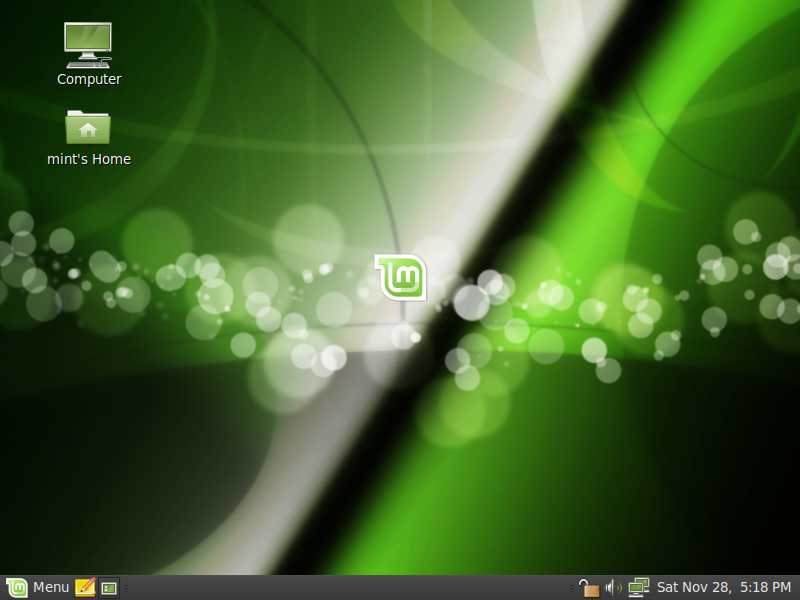
Quick steps:

Introduction to Linux Mint 8 x64:

This x64 edition of Linux Mint 8 is almost identical to the Main Edition but compiled for 64 bit processors (Intel Core 2 Duo, Intel Core 2 Quad, AMD Athlon X2 64 and all x86-64 compliant processors). It comes with all the improvements featured in Linux Mint 8 Helena Main Edition.

System requirements:

An X86_64 64 bit processor (Intel Core 2, AMD X2 64, etc…) .

A minimum of 512MB of RAM is recommended. Once installed the system works fine with as low as 256MB RAM. The installation process deals with 2.5GB of data compressed on a 700MB CD and it can hang or fail on systems with less than 512MB RAM. If you have between 256MB and 512MB RAM you may have to try to install several times.

Important information and known issues:

As an RC (Release Candidate) this release is targeted at developers and beta-testers who want to help Linux Mint find and correct bugs before the stable release. Please do not use this release as your main desktop. For a complete list of known issues read the Release Notes.

The upgrade path from Linux Mint 7 x64 will be finalized for the stable release.

Feedback and bug reports:

Please report any bug you may find via the Linux Mint 8 x64 RC1 Bug Thread and give us your feedback on this release by posting a comment right here on the blog.

Download Linux Mint 8 x64 RC1:

You can download Linux Mint 8 x64 RC1 via torrent or via HTTP:

Size: 686MB LiveCD
MD5Sum: 7320db360aae3d2e119f4eeb6ca893bf

Torrent download: http://www.linuxmint.com/torrent/LinuxMint-8-x64-RC1.iso.torrent
HTTP download: http://www.linuxmint.com/edition.php?id=46

Asia:

Europe:

    Northern America:

      Rest of the World:

      Enjoy!

      Have a lot of fun testing this release candidate and let’s all hope it will help us make a great stable release.

      Samuel Wang wrote a detailed review of Linux Mint 8 Helena for Raiden’s Realm.

      Link to the article:

      http://www.raiden.net/articles/review_linux_mint_8/

      Happy reading everyone!

      Comments:

      Samuel wrote: “Linux Mint has really broken the tradition of poorly made custom respins and has nearly became a whole complete distro of its own.

      –> One of the most heated discussions in the Linux community is whether it is good or bad to have so many distributions available. I personally think it’s good and if the maintainers behind them continue to maintain them it’s simply because their work pleases a part of that community. More options means more choice, some distributions aim at being themselves while others have for purpose to bring specific changes to their base. As tiny as these changes can be, if they bring something to people and make them happy, no matter how numerous these people are, then we shouldn’t try to discourage their efforts. The purpose of the Linux Mint project isn’t to improve Ubuntu or to bring specific changes to it, in fact it’s got nothing to do with Ubuntu, it’s to develop its own vision of what a desktop operating system should be. The same way it uses Gnome, Firefox, Open Office, it considers Ubuntu as one upstream component that it uses to achieve its own goals. Now, from a technical point of view, I won’t debate the fact that Linux Mint “is” an Ubuntu derivative, but from a project point of view there’s a radical difference between bringing changes to an upstream project and developing something by reusing upstream components and I guess it’s unfair to compare other Ubuntu derivatives with Linux Mint if their purpose is specifically to modify aspects of Ubuntu.

      Samuel wrote: “Well, Linux Mint shares a few key items that it inherits from its parent.  The installer, Ubiquity, is still employed in the installation process.  Thumbs down to Ubiquity.  Ubiquity takes so much system resources ( okay not that much but a minimum of 512 mb ram is required to install) that it makes it unsuitable to run Mint on older Computers…( what a pity…).

      –> That’s true, you need more RAM to install Linux Mint than to actually run it, and it is a pity. But I think it also has to do with the fact that there’s about 2.5GB of data on the CD, compressed with squashfs to a total of only 700MB. Decompressing all this and having it available live takes a lot of resources. I’m not sure the Ubiquity installer is to blame here.

      Samuel wrote: “I don’t seem to fancy those self-advertisements that come with the installer…( reminds me too much of MS ) but I do appreciate the part where they said almost finish copying.

      –> We can’t ignore good ideas just because Microsoft used them as well. Ubuntu came with these new slides in the installer and I personally think they did a fantastic job. From a technical point of view also, as a developer, I was impressed with how they implemented it.

      Samuel wrote: “Another thing that amazed me was the boot time. It is really fast (about slightly less than 20 seconds on my old rig)“.

      –> Again, credits go to Canonical for the work done on the boot sequence. They’re dedicated to making it faster and faster and we can appreciate this a bit with every new release of Ubuntu.

      Samuel wrote: “The new Gdm is a thing to look out for. Sure it doesn’t allow you to use all the old themes available at gnome looks, but it does give an overall nice and coherent theme to the system.

      –> I was disappointed by the fact that they broke backward compatibility with the themes and also by the new configuration of GDM. You need to use Gconf as “gdm” to change it and this is really awkward as users tend to do interact with configuration only as themselves, or as root.

      Samuel wrote: “Finally at last, the desktop.  I love it when they give a welcome pop up.

      –> Wasn’t that idea used by Microsoft as well? 😉

      Samuel wrote: “Finally, this is the fancy and shiny app that you should look out for: The MintInstall software manager.  Things to look out for: Applications can be and are ranked according to users liking.  Applications are well-placed into each category  making search for apps rather convenient.

      –> mintInstall got some drastic improvements in Linux Mint 8, but we’re only half-way there. We’d like users to be able to vote and review applications straight from the Software Manager and I also think there isn’t enough choice within the current selection, packages in particular should be visible in this tool so that users don’t need to switch back and forth between mintInstall and Synaptic. We’ll continue to bring improvements to this tool in the upcoming releases.

      Samuel wrote: “Linux Mint and Linux Mint does really work great with older computers. They just need to do something about Ubiquity.

      –> We’re happy with Ubiquity (it is, after all, among the best installers in the Linux world) and we don’t have plans to replace it. We’re working however on a Debian edition and in the scope of this project we’re developing our own installer. I don’t expect it to be as mature as Ubiquity anytime soon and especially not for Linux Mint 9, but it will catch up eventually and so when the time comes we’ll have yet another option to choose from, between keeping Ubiquity in the main edition or replacing it with our own installer.

      Samuel wrote: “The MintInstall software manager is really great, making installing applications really a breeze.  IMHO, Mintinstall is what we need to break those biased opinions that installing software is difficult for Linux.

      –> It’s one of our most popular tools and we’re really proud of it. I personally think it’s the best application for the job at the moment, and yet I don’t find it good enough yet. Software Management is going to improve in most distributions, we’re not the only ones innovating in this regard but we’ll work really hard to improve it even further for the next release.

      Samuel wrote: “I personally would recommend it to any one who just came out of the windowed world or any one who is looking for a light and simple system.  Linux Mint 8 is really on the right track on making Linux user friendly..

      –> Many Linux distributions are now user-friendly enough to please Windows users and to convince them to make the transition and it’s nice to think that we’re contributing to making this happen. Launchpad’s number #1 bug is “Microsoft has a majority market share“. At the moment, its status is at “Confirmed” and we’re all working really hard to move it to “Fix released”. With every new release we’re bringing people more and more good reasons to make the switch, whether it’s in Linux Mint, upstream projects or other distributions.

      By now, you’re probably familiar with the series of articles called “The Perfect Desktop”. Falko Timme has be writing them for a while now and they’re quite popular. They show you how to install the major distributions, how to quickly add extra software and how to set them up to get a nice desktop environment. These articles are of very good quality, regarding the one about Linux Mint 8 Helena I don’t have many comments to make.

      Link to the article:

      http://www.howtoforge.com/the-perfect-desktop-linux-mint-8-helena

      Comments:

      Falko wrote: “Download the Linux Mint 8 iso image from http://www.linuxmint.com/download.php, burn it onto a CD, and boot your computer from it.

      –> I don’t want to sound boring or anything, but it’s important that you check the MD5 signature of the ISO after you’ve downloaded it. Simply open a terminal and type “md5sum LinuxMint-8.iso”, this should return the same md5 signature as in here, and guarantee that the file you downloaded is in “mint” condition. Also, you should burn your CD at low speed. Let’s not discuss the reliability of packet transfers over the Net or laser lens technologies, let’s just say that many problems can be prevented by doing this. In most cases these are not necessary, the download usually is fine and so is the CD, but if any of the two are corrupted you could end up with really weird problems and a system which “appears” to run fine.

      Falko wrote: “When you log in for the first time, you will most likely see an open lock icon in the lower right corner which means that updates for the installed software are available. Open the main menu and click on the All applications button. To install the updates, go to Applications > Administration > Update Manager.

      –> You can click on the lock icon itself to open the Update Manager.

      Falko wrote: “So some applications are already on the system. NTFS read-/write support is enabled by default on Linux Mint 8.

      –> This used to be a specificity of Linux Mint back in the days when we provided the mintDisk tool, but NTFS is fully supported by most distributions nowadays. Also, in the list of applications written by Falko, Java is installed by default in the main edition of Linux Mint (I assume we’re talking about the JRE since only developers would be interested in installing the JDK).

      Falko wrote: “To install additional applications, open the Synaptic Package Manager.

      –> You could also use the Software Manager for this, in particular you can install the following applications very quickly by using its “Featured applications” feature: Amarok, aMule, Audacity, F-Spot, Filezilla, Google Earth, Microsoft TrueType Fonts, Opera, Picasa, Scribus, Skype, Songbird, Virtualbox and VLC.

      Falko wrote: “To finish the VirtualBox installation, we must add the user that will run VirtualBox (falko in this example) to the vboxusers group.

      –> As far as I know, recent versions of Virtualbox do that for you when you install the application.