
It is now possible to upgrade Linux Mint 22, 22.1 and 22.2 to version 22.3.
If you’ve been waiting for this we’d like to thank you for your patience.
1. Create a system snapshot
You can use Timeshift to make a system snapshot before the upgrade.
If anything goes wrong, you can easily restore your operating system to its previous state.
Launch Timeshift from the application menu, follow the instructions on the screen to configure it and create a system snapshot.
2. Prepare for the upgrade
If you installed Cinnamon spices (applets, desklets, extensions, themes), upgrade them from the System Settings.
3. Upgrade the operating system
Upgrading to Linux Mint 22.3 is fast and easy.
In the Update Manager, click on the Refresh button to check for any new version of mintupdate or mint-upgrade-info. If there are updates for these packages, apply them.
Launch the System Upgrade by clicking on “Edit->Upgrade to Linux Mint 22.3 Zena”.
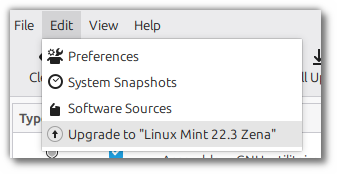
Follow the instructions on the screen.
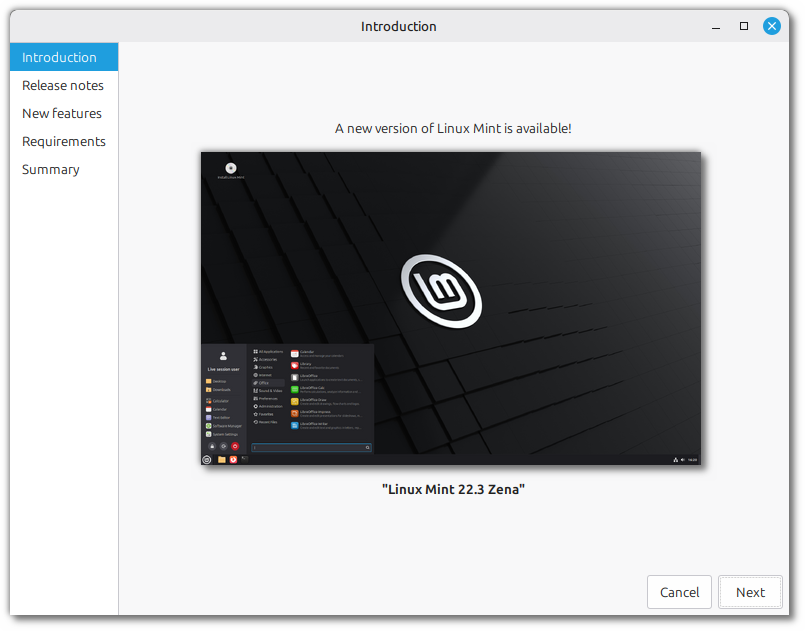
If asked whether to keep or replace configuration files, choose to replace them.
4. Reboot the computer
Once the upgrade is finished, reboot your computer.
Commonly asked questions
- If the upgrade is not available to you, check that you have the latest version of mint-upgrade-info (1.3.0 or higher) and restart the Update Manager by launching it again from the applications menu.
- If the latest version of mint-upgrade-info is not yet available in your mirror, switch to the default repositories.
- This happens rarely, but if you ever got locked and were unable to log back in, switch to console with CTRL+ALT+F2, log in, and type “killall cinnamon-screensaver” (or “killall mate-screensaver” in MATE). Use CTRL+ALT+F7 to get back to your session.
- Cinnamon Edition: The main menu was redesigned. To avoid using a mix of old and new settings we recommend you reset your menu settings after the upgrade. Upgrade, reboot, log back in then right-click your Cinnamon menu, “Configure…”, press the burger menu (top-right) and choose “Reset to defaults”.
I updated, everything is fine, thank you
I unpdated too works grear
Updated my HP All in One PC from 22.2 with no errors, but now the Update Manager does not launch even though it is in the Startup Applications correctly and therefore is not showing in the Task Bar. When manually started from Main Menu (won’t start when clicking Run Now in Startup Applications) it works as expected but much slow than previously.
Atualiza pelo terminal que assim que estiver 100% ele volta ao normal e pelo terminal ele atualiza melhor
Will my files (images, documents) be deleted if i upgrade from 22.2?
No.
Upgraded from 22.2 to 22.3 in less than 2 minutes.. no issues.
Nach der Installation gab es Probleme mit dem starten von Mint, der Bildschirm bleibt , nach dem LM Logo schwarz. was kann ich tun? kernel 6.8 funtioniert glaube ich auch nicht, ich kann es nicht reparieren. der Bildschirm bleibt schwarz.
For those who, like me, do not read German, Google translate offers the following.
———-%<———
After the installation there were problems with starting Mint, the screen remains black after the LM logo. what can I do? I don't think kernel 6.8 works either, I can't fix it. the screen remains black.
———-%<———
I would suggest catch the grub screen, and select next entry which should take you into recovery options. – translation below by Google…
———-%<———
Ich würde vorschlagen, den Grub-Bildschirm zu sehen und den nächsten Eintrag auszuwählen, der dich zu den Wiederherstellungsoptionen führen sollte.
I left it updating while grabbing a cup of coffee and when I returned it was done. LM’s updates are very straightforward. Thank you as always, Clem and team!
Thank you Clem. Update went flawlessly on all 5 of my Mint Mate systems and my Mint Cinnamon and XFCe systems. Thanks again.
Getting back the classic menu:
* https://unix.stackexchange.com/questions/803119/new-start-menu-in-lm22-3-cinnamon-6-6-reverting-to-the-previous-classic-view
My keyboard layout switch was “Ctrl+Win”. After upgrade it was break.
The fact this update was also delivered to LDME 7, thank you Devs!
Updated without a problem. Very smooth. I’m running gnome desktop and interested to try the new cinnamon menu.
auch das halbe ich versucht, aber ergebnislos. Vielen Dank für die Antwort, aber vielleicht gibt es ja noch weitere Möglichkeiten
Just a suggestion: can you please show Current Mint version (`Linux Mint 22.3 “Zena”`) in the app Update Manager? I always search there first…
I have mint-upgrade-info 1.3.0 on my Linux Mint 22.2 system, however, even after ensuring apt is up to date, and power cycling, Update Manager has no indication of any upgrade available, even after clicking the Refresh button.
I noticed the System Report alert in the system tray and when I clicked it, it presented me with a button to Upgrade to “Linux Mint 22.3 Zena”.
I have only remote access to my Linux Mint box. I did according to the article and upgrade failed with the mesage “The upgrade did not succeed. Make sure you are connected to the Internet and try to upgrade again”.
Why there is no any article about upgrading from the console shell?
I updated my system to Linux Mint 22.3.
The process worked very well. No issues.
After completion, i started Update Manager and refreshed.
Update manager came up with 181 updates available.
Should I install all those updates?
Updated in just few minutes. Eeverything is working fine. Thank you
The update went smoothly, but afterward, I can’t switch the keyboard layout in the Calendar and some parts of LibreOffice, for example: Edit—>Find… I did a full update, but it didn’t solve the issue.
I tried to upgrade XFCE LM to 22.3, which the update manager is available, but at the last step (Summary) it says:
“The upgrade did not succeed. Make sure you are connected to the Internet and try to upgrade again.”
But I have internet. sudo apt update and upgrade just work. apt dist-upgrade says there’s nothing… Is it a sure thing that upgrade is available for XFCE LM?
I have found out what is going wrong. If you have your Linux Mint as a VM (like esxi of proxmox) and you connect with VNC or RDP, when you upgrade you won’t get a box to pass your password because. What I did in Proxmox make a with the NoVNC (or Spice)console) you will directly connect to the DM and when you do upgrade you get the box to fill in your password. Upgrade was done in a jiffy.
Ah yes, this was fixed on github recently: https://github.com/linuxmint/mintupdate/commit/f0cd05e75930a3176e78a62c49ce137794179660.
WELL DONE
is not auto-mounting devices afeter the update
went to go update, whenever i click update to 22.3 just closes the window and does nothing.
any idea’s?
Run mintupdate from the terminal and see if you get an error in the output.
Much respect for a wonderful O/S. New convert from MS and never been happier!
Have a 2 part query on size req. Cinnamon Mint Zena 22.3 Fresh install vs Upgrade.
Fresh = 2.9 Gb, Upgrade 22.2 > 22.3 = 10-15 Gb (safe transition I understand (buffer).
I only have a 250Gb drive so concerns with file size of a point upgrade.
1) If I upgrade (not fresh) how much space is required post installation. Seems a big difference between 2.9 Gb and 10-15 Gb.
2) Will many installation files be removed to free up space? Any tools to clear out any unnecessary / system files?
I am a good boy, running automatic snapshots and take before upgrading 😉
Shout out to all the amazing podcasters out there helping us newbies find a truly free and liberating O/S. The experience is as exciting as when I had an Amiga.
Shout inc. @LoveLinuxxMint
This upgrade shouldn’t take much. You can run “apt clean” to clear the cache after it’s finished.
Hello, after my update, I ‘loose” all my system icons: on the menu, the power buttons are just empty circles and all system icons (nemo shortcuts, applets settings, …) are “blank pages” with an exclamation mark…
I already tried to restore a snapshop and do the upgrade again, but same result…
Any ideas?
Make sure xapp-symbolic-icons is installed.
How can I check it?
Sorry for the double post, but I just check it with apt, and it’s installed with the latest version available
smooth upgrade. no issues. I’ve gone from 22.1 -> 22.2, and now to 22.3.
Thank You Very Good! 22.3
During Upgrade in the Horizontal Tab “Requirements” (4 of 5) the “Apply” button
is greyed out because no Check Mark was used, BUT in the “Dark” theme you cannot
see the Check Mark box at all!!! I just guessed there was one… And fumbled around till it was clicked…
I’m on 22.1 and I have no option in Update Manager -> Edit to update to 22.3 …
Tried apt-get update, apt-get dist-upgrade …Nothing. Still 22.1
My mint-upgrade-info is 1.2.8 and I don’t seem to have a way to upgrade to 1.3.0
Any idea?
ty
I am having the same exact problem as you Fred. IDK how to get the upgrade. 🙁
Oh I solved it by running `sudo apt install mintupgrade` and then after installing, run: `sudo mintupgrade check` to run the Upgrade Tool for Linux Mint 22 “Wilma”. Good luck!
after updating from mint 22.2 zara to mint 22.3 zena, my update manager was nolonger working and i tried rolling back to mint 22.2 and even it was not working, after updating again to mint 22.3, nothing is able to update or upgrade
I updated my linux mint 22.2 to 22.3 but when I rebooted the PC I now get the grub menue and have to press enter button to load my desk top. I have tried every suggestion given but it does not change, this happened to me before with 22.2 but I was able to correct it with those suggested fixes.
I am running Linux Mint Mate 21.3 .
I had not upgraded to v22, because I understood that Linux Mint had implemented a flatpack thing like the snapcrap in Ubuntu Linux, and, I do not want that stuff in package management. The Ubuntu snapcrap was one of the reasons that I moved to Linux Mint, to avoid the snapcrap stuff.
I understand that, with Ubuntu 26.04 LTS being due for release, next month, Linux Mint will be releasing (soonish after that – is an expected release date predicted, as yet?) v23.x , and so, v21.x will near starting to near EOL.
So, I have three separate questions.
The first is, is it possible to upgrade and retain the traditional package management without the flatpack/snapcrap style of stuff?
The second question is, from v21.3, does upgrading to the latest version, require stepwise upgrading, through each point release from 21.3, and, if so, will that upgrade pathway still be available, when 23.x is released?
The third question, is, when is the EOL of v21.3 expected to occur; when support for 21.3 is due to end?
Thank you for the improvements in LM 22.3. But two things I really don’t understand: why do you uninstall synaptic? And why the mirror servers are not saved before and restored after upgrade? Is this so difficult?
Nemo “show folder expanders” has been disabled. Why?
From Mint 20 to Mint 22.3 in a few minutes… simple and easy.
Well done Mint team, you rock !!!
I have had to abandon trying to upgrade from Linux Mint 21.3 to 22.3, as the mintupgrade package is so harmful.
First, it filled my root partition with snapshot faeces, causing a filesystem error stating that the root partition now had no free space, with timeshift and its faeces apparently needing terabytes of disk space, and, then, when I disabled the malicious timeshift package, the mintupgrade displayed an error message stating that the Vivaldi and Librewolf source files are not compatible because Linux Mint 21.3 filesystem is apparently not compatible with Linux Mint 22.3 – something to do with some ddeb8822 (or something like that) thing.
It is unfortunate that Linux Mint 21.3 ia already, not supported by the LinuxMint developers.
It is unfortunate that Linux Mint 21.3 is not allowed to be upgraded, as it is unfortunate that Linux Mint does not provide a support mailing list for users.