
The terminal just got better as little improvements were made in apt (/usr/local/bin/apt) and a new “highlight” command was introduced in mintsystem.

Improvements in apt:

  • apt was completely rewritten in Python
  • The search, show, content, contains, version, policy, depends, and rdepends now come with color highlighting
  • sudo is now only used when necessary, so “apt search” for instance doesn’t require a password anymore.
  • The help was improved and is now shown by simply typing “apt”.
  • A new help command shows the Debian APT equivalent of the apt command you typed.
  • And for the APT addicts among you, Super Cow Powers were added.

highlight:

  • highlight is a new python script placed in /usr/local/bin and provided by the mintsystem package
  • it highlights keywords in different colors
  • for instance “lspci | highlight VGA USB Ethernet Wireless” shows the normal output of lspci but with “VGA” highlighted in red, “USB” in green, “Ethernet” in yellow, and “Wireless” in blue.

Of course there’s nothing new or revolutionary here, just a few incremental improvements. The terminal is extremely important, and although almost everything can be done graphically nowadays, it represents for many people a simpler/faster way to achieve what they want. It’s always been more precise, more exhaustive… in many respect, a better tool, than most alternative graphical user interfaces, so it’s only natural we make it as confortable as a terminal can be.

Comments and ideas are welcome. These commands can certainly be improved further. If you think something’s missing please speak up.

Note: The commands and improvements mentioned above are available in mintsystem, versions 7.4.9 or greater.
* News about Mint

Linux Mint 7 “Gloria” KDE RC1 released!

How to upgrade Mint 6 Felicia x64 to Mint 7 Gloria x64

Monthly Stats – June 2009

Mint is really doing well

We have done some small improvements on the website

We have done some improvements in how donations are handled

mintCast episode 17

mintCast episode 18

* News about Linux

New Linux patch could circumvent Microsoft’s FAT patents

Google OS Could Put Squeeze on Other Flavors of Linux

The latest news about the kernel is always found here

* News about Open Source

Why free software shouldn’t depend on Mono or C# by Richard M. Stallman

* News about IT

HTML 5 drops open source video codec

Apple’s Steve Jobs back at work

Pirate Bay sold for $8 million

Google peels ‘beta’ label off Gmail, other Google Apps

China’s Internet backdown lauded by firms, activists

Cyber attacks against the US and South Korea – North Korean origin?

Security delayed or security denied? A very serious IE bug known a year

Allegation: the Bill and Melinda Gates Foundation – if you want help from us, use Microsoft products

* Hardware news

Dell’s Online Price Error Troubles Worsen in Taiwan

* Other news

* Comic of the week

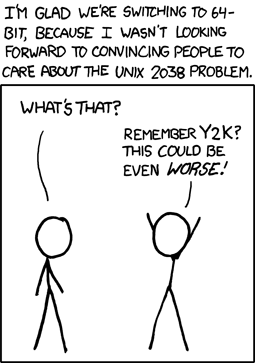
Credit goes to xkcd

The bug

* More about Linux Mint

How to donate

Home page

Blog The planet Wiki Forum Twitter Mintcast

* Editors comment

As always – if you find something I’ve missed in the newsletter please tell me – you can post a comment.

Enjoy life

Husse

Warnings:

  • This upgrade path is for the x64 Edition only, from a Mint 6 Felicia to a Mint 7 Gloria system.
  • There is no guarantee that it will work for you. In fact this is quite a risky process. If you’re experienced and if you know how to troubleshoot and solve common Linux problems (in particular X11, kernel modules and APT problems) then you’re probably OK. If you’re a novice user we recommend you perform a fresh installation of Linux Mint 7 x64 instead.
  • You should make backups of all your data before upgrading.

Upgrading graphically:

  • Open a terminal and type the following commands: “apt update” and “apt install mintupgrader-felicia-x64”
  • Open mintMenu and run “Menu->Administration->Upgrade to Linux Mint 7″
  • Follow the instructions. Choose the default options. Ignore errors (in particular GPG and gtk2-engines-aurora errors).
  • Once the tool is finished upgrading, reboot the computer.
  • Eventually, if you noticed errors the first time, run the tool again (it should be faster and if things failed the first time it will resume the upgrade).

Upgrading from the command line:

Open a terminal and type the following commands:

  • gksu gedit /etc/apt/sources.list (Change all occurrences of “felicia” to “gloria”, and all occurences of “intrepid” to “jaunty” then save the file and close the editor)
  • apt update
  • apt remove mintassistant
  • apt install linuxmint-keyring
  • apt update
  • apt install mint-info-x64 (choose “Y” or “I” to install the package maintainer’s version)
  • apt install mint-meta-x64 (choose “Y” or “I” to install the package maintainer’s version)

In the terminal, repeat the following commands until both show no upgrades available:

  • apt upgrade
  • apt dist-upgrade

Then type the following commands:

  • apt install mint-meta-x64
  • sudo rm -rf /boot/gfxmenu/default.message
  • sudo ln -s /boot/gfxmenu/linuxmint.message /boot/gfxmenu/default.message

Finally, open “Login Window” from the menu, click on the “Local” tab and choose the Arc-Wise theme. (If after rebooting you get an error about the theme at the login prompt, repeat this step.)

To get GDM to play the default Linux Mint sound, open “Login Window”, click on the “Accessibility” tab, and set the sound for “Login screen ready” to “/usr/share/sounds/linuxmint-gdm.wav”.