
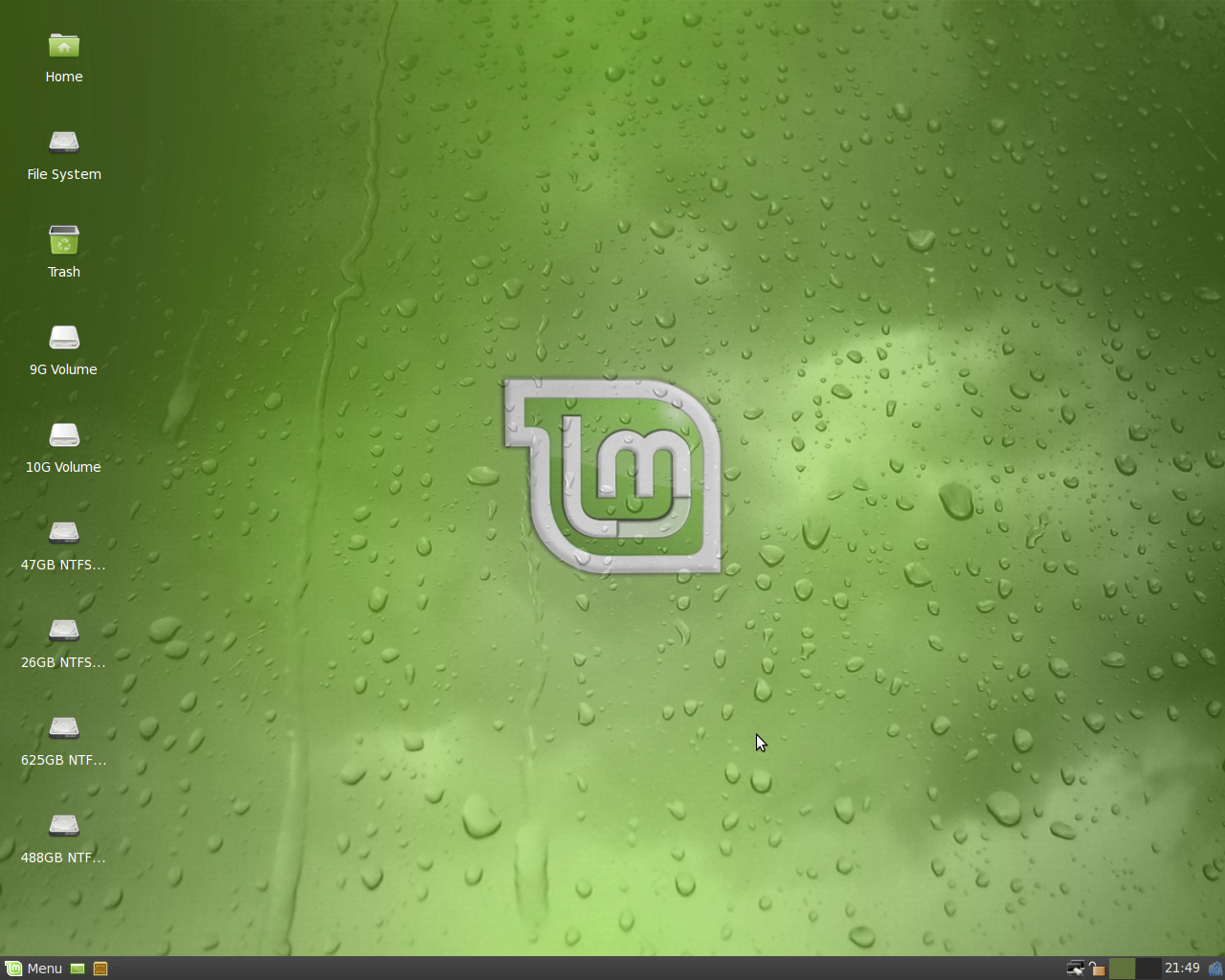
The team is proud to announce the release of Linux Mint 7 “Gloria” XFCE Community Edition RC1.
Quick steps:
- Download the ISO or the torrent.
- While it’s downloading look at the overview of the new features and make sure to quickly go through the known issues.
- After the ISO is downloaded verify the MD5.
- Burn the ISO at low speed and enjoy testing Linux Mint 7 XFCE RC1.
- Send us your feedback and submit your bug reports in the dedicated bug thread.
Introduction to Linux Mint 7 XFCE:
The XFCE Community Edition aims to provide a version of Linux Mint which uses the XFCE desktop.
For a detailed overview of the new features and improvements included in Linux Mint 7 XFCE, please read “What’s new in Gloria XFCE?“.
System requirements:
A minimum of 3GB of free space and 256MB RAM are needed. For a comfortable experience we recommended to have at least 512MB RAM and 10GB of free space.
Important information and known issues:
For a complete list of known issues read the Release Notes.
The root password is now set as the same as the one chosen during the installation.
If you’re using Mint tools in other distributions, make sure to turn off the adjustment system by editing /etc/linuxmint/mintSystem.conf.
Download Linux Mint 7 XFCE RC1:
You can download the XFCE Edition via torrent or via HTTP:
Size: 693MB LiveCD
MD5Sum: 9a34d2f80337a6bc3a5e92c690d36499
Torrent download: http://www.linuxmint.com/torrent/LinuxMint-7-XFCE-RC1.iso.torrent
HTTP download: http://www.linuxmint.com/edition.php?id=43
Asia:
- http://ftp.jaist.ac.jp/pub/Linux/LinuxMint-ISO/testing/ (Japan)
- http://ftp.riken.jp/pub/Linux/linuxmint/testing/ (Japan)
Europe:
- http://mirrors.cytanet.com.cy/linux/mint/testing/ (Cyprus)
- http://ftp.klid.dk/ftp/linuxmint/testing/ (Denmark)
- http://ftp.cc.uoc.gr/mirrors/linux/linuxmint/testing/ (Greece)
- http://ftp.heanet.ie/pub/linuxmint.com/testing/ (Ireland)
- http://cesium.di.uminho.pt/pub/linuxmint/testing/ (Portugal)
- http://ftp.df.lth.se/pub/linuxmint/testing/ (Sweden)
- http://mirror.sov.uk.goscomb.net/linuxmint.com/testing/ (UK)
Northern America:
- http://mirror.amarillolinux.com/linuxmint/testing/ (USA)
- http://mint.ez.by/linuxmint.com/testing/ (USA)
- http://linuxmint.secsup.org/testing/ (USA)
- ftp://mirrors.secution.com/linuxmint.com/testing/ (USA)
Oceania:
Upgrade instructions:
Upgrade instructions will be published with the stable release.
Feedback and bug reports:
Please report any bug you may find via the Linux Mint 7 XFCE RC1 Bug Thread and give us your feedback on this release by posting a comment right here on the blog.
Enjoy!
Have a lot of fun testing this release candidate and let’s all hope it will help us make a great stable release.