If you’re a Linux Mint donor or a Linux Mint sponsor, you can now change your details and follow your contributions thanks to a brand new interface.

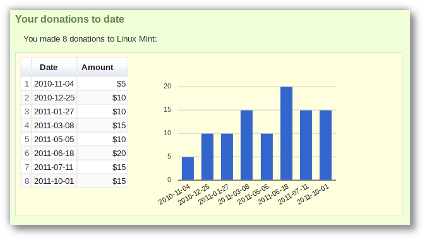
The interface also shows you exactly how you appear on our website:

And we now also generate a cool new image, which you can use as a forum user-bar, as an email signature, or even as a Web badge. Be proud of the help you’re giving us and show people you’re part of the reason Linux Mint is what is today.

Whether you’re a Linux Mint Donor:

Or a Linux Mint Sponsor:

Donations and sponsorships are extremely important to us. Every month, we receive the financial support of hundreds of people and it was about time we gave a little something back.

I hope you’ll enjoy this new interface and these new signatures, and I look forward to receiving your feedback.

If you’re a Linux Mint donor or sponsor, you access this new interface using the credentials you received by emails.

If you need a new access code, you can visit the following address: http://www.linuxmint.com/dashboard

Last but not least, I’d like to take the opportunity to thank all the people who help us by other means. Financial support and associated income is what pays the bills and guarantees we can work on Linux Mint instead of looking for a job, but there are many people out there who help us in various ways. They make our job easier, our community and desktop better and they allow us to focus on what really matters. If you’re promoting Linux Mint, helping with the developement, welcoming and helping other users, creating artwork…. etc… if you feel in any way responsible and helpful within our community, we’d like to thank you as well.

I’m sure you can think of more signatures than we could ever design so here’s an image that can be used as a template:

Feel free to design your own signatures, to add text and additional artwork to them, to place them wherever you want and to make them link to the sites of your choice. Whether it’s on your website linking to us, or on our forums linking to you, be proud of your contribution within our community and encourage others to be as active.

A big thank you to everyone involved.

Introduction

Update Pack 3 was released as the “latest” update pack today. If you’re not using Linux Mint Debian, please ignore this post.

In Update Pack 3, two drastic changes occur:

  1. There’s a brand new kernel 3.0
  2. The Security and Multimedia repositories are now part of the Update Pack itself.

As usual with updates, and especially with the new kernel, there’s some known problems and workarounds for you to enjoy which are documented in the Update Pack Info window of the Update Manager. The changes related to the Security and Multimedia repositories are documented there as well. I’m taking the opportunity to explain things a little more, here on the blog, and to let you comment and ask questions in case things aren’t 100% clear.

Changing your repositories

The first thing you need to do is to change your Multimedia and Security repositories. Edit your APT sources by typing the following command:

gksu gedit /etc/apt/sources.list

Within this file, replace the following:

  • Replace security.debian.org with debian.linuxmint.com/latest/security
  • Replace debian-multimedia.org with debian.linuxmint.com/latest/multimedia

Your APT sources, should now look like this:

deb http://packages.linuxmint.com/ debian main upstream import
deb http://debian.linuxmint.com/latest testing main contrib non-free
deb http://debian.linuxmint.com/latest/security testing/updates main contrib non-free
deb http://debian.linuxmint.com/latest/multimedia testing main non-free

Save and close the file.

Using the Update Manager

… to update itself

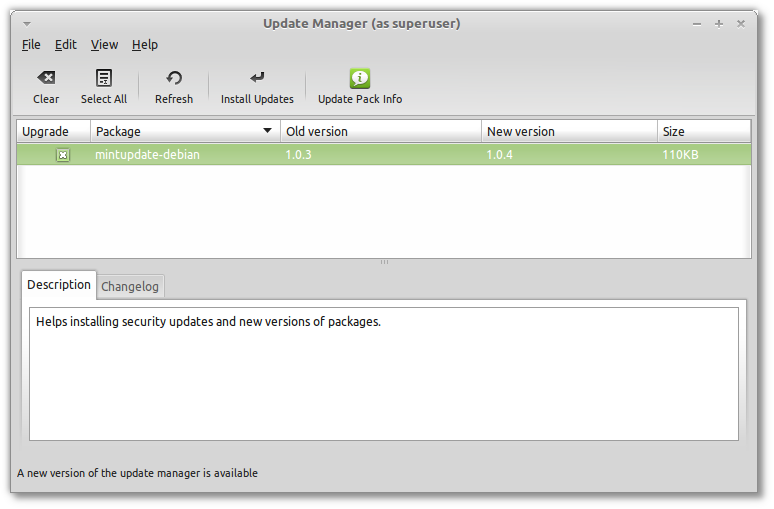
The Update Manager always updates itself before other packages. If you see an update for “mintupdate-debian“, accept it and wait for the Update Manager to restart itself.
If there’s a new Update Manager available, it will only list itself as an update

… to check your APT sources

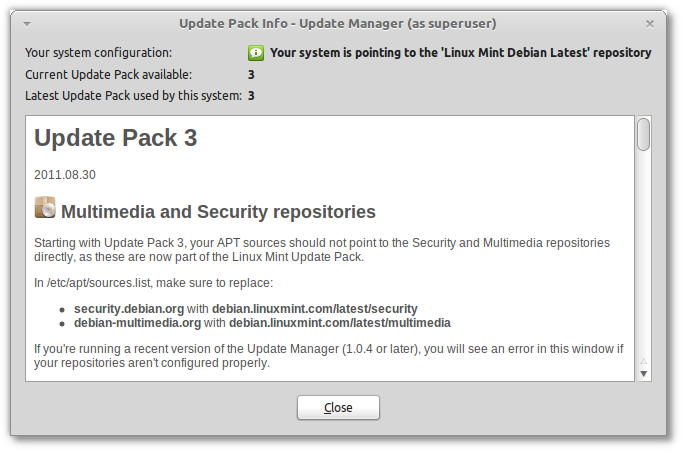
At the time of writing this blog post, the latest version of mintupdate-debian is 1.0.4. From this version onwards the Update Manager is able to check your APT sources and tell you if they are properly configured.

  1. Click on the “Update Pack Info” button
  2. Make sure “Your system configuration” shows up as green and doesn’t show any warnings or errors
  3. If you see a warning or an error, follow the instructions given and repeat the process until they’re gone.
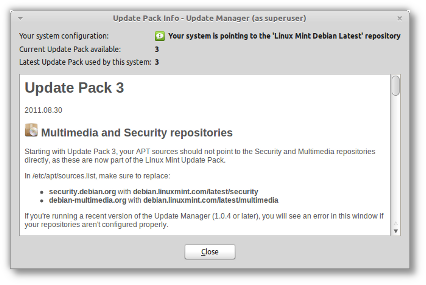
Check the system configuration and read the Update Pack information

… to know more about Update Pack 3

In the “Update Pack Info” window, make sure to read all the information related to Update Pack 3. Some of it might be irrelevant to you, but it will only take you a minute and it might you save you hours.

… to upgrade to Update Pack 3

When you’re ready and you know all that there is to know, press the “Install Updates” button.

During the update you’ll be asked a few things. One is quite important.. the new kernel will ask you where to install Grub. Answer with the location of your current Grub menu (which on most systems is “/dev/sda“).

FAQ

Why doesn’t the Update Manager alter my APT sources automatically?

We’re not confortable with updating your system configuration on your behalf. changing your repositories

Why wasn’t Update Pack 3 part of the latest LMDE release (201109)?

For three reasons:

  1. It became stable after LMDE RC was released. At this stage, our only concern is quality and testing. Upgrading to Update Pack 3 would have postponed the release by at least a month and another RC release would have been needed.
  2. It features kernel 3.0. It made sense to stick to a kernel we know works well for everybody until we get more feedback on the newer one. Because LMDE 201109 came with a 2.6.39 kernel, users can also now enjoy the choice between 2.6.39 and 3.0 and use the kernel which works best for them. If we shipped with kernel 3.0, it would have been much harder for people who wanted to downgrade.
  3. There will be new Update Packs all the time, at some stage we need to freeze a release and focus on stability rather than chasing new updates.

Why is the change the APT sources needed?

We used to snapshot the main Debian Testing repository for our Update Packs. We’re now also making snapshots of the Multimedia and Security repositories. This is to ensure a higher level of compatibility between the packages present in all the repositories.

What makes Update Packs better than simply pointing at Debian?

There are people in our community which help us spot and document upstream issues in Debian Testing. Update Pack 3, for instance, has been tested for weeks and we gathered feedback on it from people using the Incoming repositories. Some of these issues are now well documented, and others simply don’t occur anymore as we got the opportunity to fix them before making them available to you. By using Update Packs, you receive the same updates as other users, at the same time, with documentation and with less chances of breakages. Altogether, that makes you less likely to experience problems, and more likely to find solutions when you do.

LMDE 201109 Gnome

The team is proud to announce the release of LMDE 201109 with updated ISOs for Gnome and Xfce.

Highlights

LMDE in brief

  • Linux Mint Debian Edition (LMDE) is a rolling distribution based on Debian Testing.
  • It’s available in both 32 and 64-bit as a live DVD with Gnome or Xfce.
  • The purpose of LMDE is to look identical to the main edition and to provide the same functionality while using Debian as a base.

What’s new in this release

  • All Linux Mint 11 features
  • Installer improvements (keyboard variants, locale, bug fixes, UUID in fstab)
  • Update Packs, dedicated Update Manager and staged repositories
  • GTK2/GTK3 theme compatibility
  • Updated software and packages

If you’re new to LMDE, welcome to Linux Mint Debian!

Important info

Multi-core and multi-CPU support in 32-bit kernel:

To guarantee compatibility with non-PAE processors, the 32-bit versions of Linux Mint Debian come with a 486 kernel by default. This kernel does not support SMP, and as a consequence is only able to detect one core and one CPU. If your CPU has multiple cores, or if you have more than one CPU, simply install the 686-PAE kernel and reboot your computer.

Update Pack 2 and Update Pack 3:

This release comes with Update Pack 2 and points to the “Linux Mint Debian Latest” repository as well as the Debian “Security” and “Multimedia” repositories.

Starting with Update Pack 3, “Security” and “Multimedia” become part of “Linux Mint Debian Latest”. When Update Pack 3 is made available, your sources will need to change and all of them will then point at Linux Mint. In the meantime, it is recommended not to apply updates coming from “Security” and “Multimedia”, as they might not be compatible with the packages in Update Pack 2.

Important links:

Frequently Asked Questions

1. Is LMDE compatible with Ubuntu-based Linux Mint editions?

No, it is not. LMDE is compatible with Debian, which isn’t compatible with Ubuntu.

2. Is LMDE fully compatible with Debian?

Yes, 100%. LMDE is compatible with repositories designed for Debian Testing or Debian Squeeze.

3. What is a rolling distribution?

LMDE constantly receives updates. Its ISO images are updated now and then but users do not require to re-install it on their systems.

4. How does LMDE compare to the Ubuntu-based editions?

Pros:

  • You don’t need to ever re-install the system. New versions of software and updates are continuously brought to you.
  • It’s faster and more responsive than Ubuntu-based editions.

Cons:

  • Although it’s using Romeo for unstable packages, LMDE continuously changes as it receives updates and new software. Compared to a frozen version of Linux Mint which changes very little once it’s publicly released, it’s not as stable. Things are likely to break more often but fixes can also come quicker. For this reason, LMDE requires a deeper knowledge and experience with Linux, dpkg and APT.
  • Debian is a less user-friendly/desktop-ready base than Ubuntu. Expect some rough edges.
5. Will it come with KDE or other desktops?

Yes. It will support KDE and Fluxbox in the near future.

Additional notes:

  • About the installer: The live installer is developed from scratch with Debian in mind. It’s configurable and it can be re-used by other Debian-based distributions. We noticed a lack in live technologies and in live Debian installers, so we’re happy to take the lead on this. If you’re a developer and you’re interested in using it, have a look at its source repository and don’t hesitate to contact us so we can help you fork it and merge upcoming changes between our two projects.
  • About bugs: Please use Launchpad for bug reports.
  • About the media: It comes as a liveDVD. Locales work differently in Debian and the package base requires more space. We made LMDE compatible with unetbootin though, so you can install it using a USB stick.
  • Dedicated chat room: #linuxmint-debian is open to LMDE users on irc.spotchat.org.

Download links

MD5:

  • Gnome 32-bit: 12b6ba38ae84998bd054e0ef936bc7d5
  • Gnome 64-bit: 638febbbd5daec10a84a91ccaa1047a3
  • Xfce 32-bit: 470e6149ed9d4f7a08183c8fa0ddb1a1
  • Xfce 64-bit: 1a39ace750eebcc1c5e5d225e2d6f6dd

Download via torrent: [Gnome 32-bit] – [Gnome 64-bit] – [Xfce 32-bit] – [Xfce 64-bit]

Download via HTTP:

Enjoy!

We look forward to receiving your feedback. Thank you for using Linux Mint and have a lot of fun with this new release!