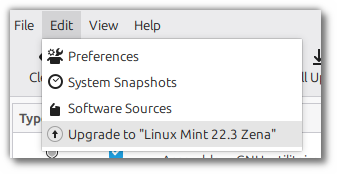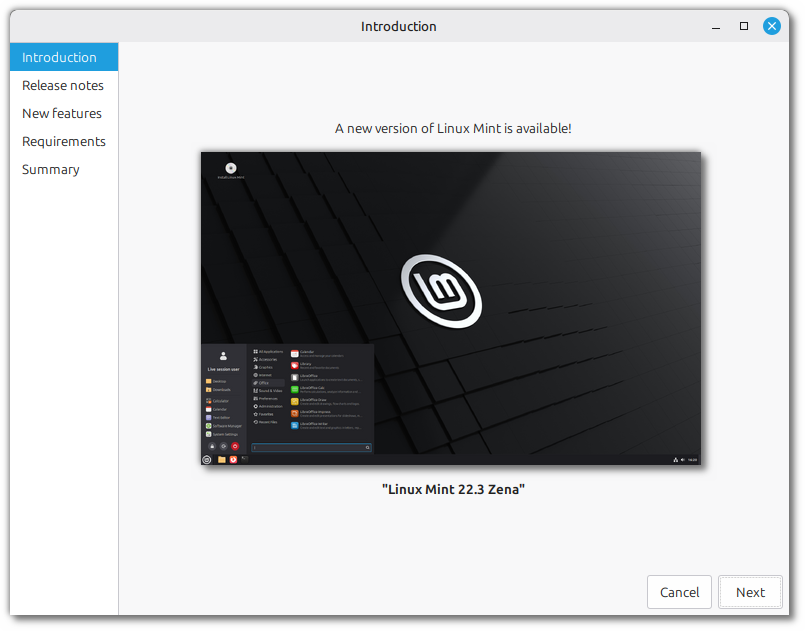
The team is proud to announce the release of Linux Mint 22.3 “Zena”.

Linux Mint 22.3 is a long term support release which will be supported until 2029. It comes with updated software and brings refinements and many new features to make your desktop even more comfortable to use.
New features:
This new version of Linux Mint contains many improvements.
For an overview of the new features please visit:
“What’s new in Linux Mint 22.3“.
Important info:
The release notes provide important information about known issues, as well as explanations, workarounds and solutions.
To read the release notes, please visit:
System requirements:
- 2GB RAM (4GB recommended for a comfortable usage).
- 20GB of disk space (100GB recommended).
- 1024×768 resolution (on lower resolutions, press ALT to drag windows with the mouse if they don’t fit in the screen).
Upgrade instructions:
- If you are running the BETA you don’t need to upgrade, use the Update Manager to apply available updates.
- Upgrade instructions for Linux Mint 22, 22.1 and 22.2: https://blog.linuxmint.com/?p=4980
Download links:
Cinnamon Edition:
- Torrent https://linuxmint.com/torrents/linuxmint-22.3-cinnamon-64bit.iso.torrent
- World Cicku
- World Linux Mint
- Canada Manitoba Unix User Group
- Canada University of Calgary
- Canada University of Waterloo Computer Science Club
- Mexico UNAM
- USA Clarkson University
- USA ette.biz
- USA Fremont Cabal Internet Exchange
- USA GigeNET
- USA Harvard School of Engineering
- USA Hoobly
- USA James Madison University
- USA kernel.org
- USA Lancaster-Lebanon Intermediate Unit 13
- USA Linux Freedom
- USA MIRhosting
- USA Old Dominion University Computer Science
- USA Open Computing Facility at UC Berkeley
- USA Purdue Linux Users Group
- USA Rackers
- USA Sonic
- USA Team Cymru
- USA TeraSwitch
- USA US Internet
- USA XMission Internet
- Belarus ByFly
- Belgium BeHostings
- Belgium BOINC Team Belgium
- Belgium Unix-Solutions
- Bulgaria IPACCT
- Bulgaria Telepoint
- Bulgaria University of Ruse
- Czech Republic CZ.NIC
- Czech Republic IT4Innovations National Supercomputing Center
- Czech Republic UPC Ceska republika
- Czech Republic Webglobe
- Denmark c0urier.net
- Denmark Dotsrc.org
- Denmark KLID
- Finland 5i.fi
- Finland cdnmirror.com
- France CNRS IBCP
- France CosmicLinux
- France Crifo.org
- France Komogoto
- France Université de Reims
- Germany c48.uk
- Germany Diyar Ciftci
- Germany dogado GmbH
- Germany Friedrich-Alexander-University of Erlangen-Nuremberg
- Germany Funkfreunde Landshut e.V.
- Germany GWDG
- Germany Hochschule Esslingen University of Applied Sciences
- Germany IPB Internet Provider in Berlin GmbH
- Germany NetCologne GmbH
- Germany Netzwerge GmbH
- Germany PyrateLAN.party
- Germany SEO NW – Alexander Müller
- Germany wilhelm.tel GmbH
- Greece GreekLUG
- Greece University of Crete
- Ireland Webworld
- Italy GARR
- Latvia koyanet.lv
- Latvia University of Latvia
- Moldova iHost
- Netherlands AS215296
- Netherlands Evoluso.com
- Netherlands KoDDoS
- Netherlands LiteServer
- Netherlands MIRhosting
- Netherlands NLUUG
- Netherlands Triple IT
- Poland ICM – University of Warsaw
- Poland Poznan Supercomputing and Networking Center
- Portugal RNL – Técnico Lisboa
- Portugal Universidade do Porto
- Romania Hosterion
- Romania Hostico
- Romania Orange Romania
- Russia HyperDedic
- Russia Yandex Team
- Serbia SOX
- Serbia University of Kragujevac
- Slovakia Energotel
- Slovenia Mirrors.si
- Spain Aire Networks
- Spain Oficina de Software Libre do Cixug
- Spain Raiola Networks
- Spain University of Zaragoza
- Sweden Academic Computer Club
- Sweden Bahnhof
- Sweden Brain Drain Lan
- Sweden Infania Networks
- Sweden Swedish Retro Computer Association
- Switzerland GoFOSS
- Switzerland HB9HIL
- Switzerland Init7
- Switzerland Metanet.ch
- Turkey ekiphost
- Turkey Guzel Hosting
- Turkey Linux Kullanicilari Dernegi
- Turkey Verinomi
- Ukraine Hostiko
- Ukraine IP-Connect LLC
- United Kingdom c48.uk
- United Kingdom Server.net
- United Kingdom UK Dedicated Servers
- United Kingdom UKFast
- United Kingdom University of Kent UK Mirror Service
- United Kingdom VineHost
- Azerbaijan OUR.Technology
- Bangladesh Limda Host
- Bangladesh XeonBD
- China Beijing Foreign Studies University
- China Nanjing University
- China Shanghai Jiao Tong University Linux User Group (SJTUG)
- China TUNA
- China University of Science and Technology of China Linux User Group
- Hong Kong KoDDoS
- India Albony Network
- India NxtGen DataCenter
- India PicoNets-WebWerks
- Japan ICSCoE
- Japan Yamagata University
- Kazakhstan Hoster.kz
- Kazakhstan PS Internet Company LLC
- Saudi Arabia Maeen Network
- Singapore Freedif
- Singapore jingk.ai
- South Korea Archive of Siwoo
- South Korea Jeonnam High School
- South Korea KAIST
- Taiwan Taiwan Digital Streaming Co.
- Thailand Khon Kaen University
- Vietnam Clearsky
- Vietnam MeowSMP.net
- Australia AARNet
- New Zealand University of Canterbury
- Argentina Zero.com.ar
- Brazil C3SL
- Brazil Portal IDEA
- Brazil Universidade Federal de Mato Grosso
- Chile Universidad de La Frontera
- Ecuador CEDIA
- Kenya Liquid Telecom
- Mauritius cloud.mu
- South Africa Dimension Data
- South Africa University of Free State
Xfce Edition:
- Torrent https://linuxmint.com/torrents/linuxmint-22.3-xfce-64bit.iso.torrent
- World Cicku
- World Linux Mint
- Canada Manitoba Unix User Group
- Canada University of Calgary
- Canada University of Waterloo Computer Science Club
- Mexico UNAM
- USA Clarkson University
- USA ette.biz
- USA Fremont Cabal Internet Exchange
- USA GigeNET
- USA Harvard School of Engineering
- USA Hoobly
- USA James Madison University
- USA kernel.org
- USA Lancaster-Lebanon Intermediate Unit 13
- USA Linux Freedom
- USA MIRhosting
- USA Old Dominion University Computer Science
- USA Open Computing Facility at UC Berkeley
- USA Purdue Linux Users Group
- USA Rackers
- USA Sonic
- USA Team Cymru
- USA TeraSwitch
- USA US Internet
- USA XMission Internet
- Belarus ByFly
- Belgium BeHostings
- Belgium BOINC Team Belgium
- Belgium Unix-Solutions
- Bulgaria IPACCT
- Bulgaria Telepoint
- Bulgaria University of Ruse
- Czech Republic CZ.NIC
- Czech Republic IT4Innovations National Supercomputing Center
- Czech Republic UPC Ceska republika
- Czech Republic Webglobe
- Denmark c0urier.net
- Denmark Dotsrc.org
- Denmark KLID
- Finland 5i.fi
- Finland cdnmirror.com
- France CNRS IBCP
- France CosmicLinux
- France Crifo.org
- France Komogoto
- France Université de Reims
- Germany c48.uk
- Germany Diyar Ciftci
- Germany dogado GmbH
- Germany Friedrich-Alexander-University of Erlangen-Nuremberg
- Germany Funkfreunde Landshut e.V.
- Germany GWDG
- Germany Hochschule Esslingen University of Applied Sciences
- Germany IPB Internet Provider in Berlin GmbH
- Germany NetCologne GmbH
- Germany Netzwerge GmbH
- Germany PyrateLAN.party
- Germany SEO NW – Alexander Müller
- Germany wilhelm.tel GmbH
- Greece GreekLUG
- Greece University of Crete
- Ireland Webworld
- Italy GARR
- Latvia koyanet.lv
- Latvia University of Latvia
- Moldova iHost
- Netherlands AS215296
- Netherlands Evoluso.com
- Netherlands KoDDoS
- Netherlands LiteServer
- Netherlands MIRhosting
- Netherlands NLUUG
- Netherlands Triple IT
- Poland ICM – University of Warsaw
- Poland Poznan Supercomputing and Networking Center
- Portugal RNL – Técnico Lisboa
- Portugal Universidade do Porto
- Romania Hosterion
- Romania Hostico
- Romania Orange Romania
- Russia HyperDedic
- Russia Yandex Team
- Serbia SOX
- Serbia University of Kragujevac
- Slovakia Energotel
- Slovenia Mirrors.si
- Spain Aire Networks
- Spain Oficina de Software Libre do Cixug
- Spain Raiola Networks
- Spain University of Zaragoza
- Sweden Academic Computer Club
- Sweden Bahnhof
- Sweden Brain Drain Lan
- Sweden Infania Networks
- Sweden Swedish Retro Computer Association
- Switzerland GoFOSS
- Switzerland HB9HIL
- Switzerland Init7
- Switzerland Metanet.ch
- Turkey ekiphost
- Turkey Guzel Hosting
- Turkey Linux Kullanicilari Dernegi
- Turkey Verinomi
- Ukraine Hostiko
- Ukraine IP-Connect LLC
- United Kingdom c48.uk
- United Kingdom Server.net
- United Kingdom UK Dedicated Servers
- United Kingdom UKFast
- United Kingdom University of Kent UK Mirror Service
- United Kingdom VineHost
- Azerbaijan OUR.Technology
- Bangladesh Limda Host
- Bangladesh XeonBD
- China Beijing Foreign Studies University
- China Nanjing University
- China Shanghai Jiao Tong University Linux User Group (SJTUG)
- China TUNA
- China University of Science and Technology of China Linux User Group
- Hong Kong KoDDoS
- India Albony Network
- India NxtGen DataCenter
- India PicoNets-WebWerks
- Japan ICSCoE
- Japan Yamagata University
- Kazakhstan Hoster.kz
- Kazakhstan PS Internet Company LLC
- Saudi Arabia Maeen Network
- Singapore Freedif
- Singapore jingk.ai
- South Korea Archive of Siwoo
- South Korea Jeonnam High School
- South Korea KAIST
- Taiwan Taiwan Digital Streaming Co.
- Thailand Khon Kaen University
- Vietnam Clearsky
- Vietnam MeowSMP.net
- Australia AARNet
- New Zealand University of Canterbury
- Argentina Zero.com.ar
- Brazil C3SL
- Brazil Portal IDEA
- Brazil Universidade Federal de Mato Grosso
- Chile Universidad de La Frontera
- Ecuador CEDIA
- Kenya Liquid Telecom
- Mauritius cloud.mu
- South Africa Dimension Data
- South Africa University of Free State
MATE Edition:
- Torrent https://linuxmint.com/torrents/linuxmint-22.3-mate-64bit.iso.torrent
- World Cicku
- World Linux Mint
- Canada Manitoba Unix User Group
- Canada University of Calgary
- Canada University of Waterloo Computer Science Club
- Mexico UNAM
- USA Clarkson University
- USA ette.biz
- USA Fremont Cabal Internet Exchange
- USA GigeNET
- USA Harvard School of Engineering
- USA Hoobly
- USA James Madison University
- USA kernel.org
- USA Lancaster-Lebanon Intermediate Unit 13
- USA Linux Freedom
- USA MIRhosting
- USA Old Dominion University Computer Science
- USA Open Computing Facility at UC Berkeley
- USA Purdue Linux Users Group
- USA Rackers
- USA Sonic
- USA Team Cymru
- USA TeraSwitch
- USA US Internet
- USA XMission Internet
- Belarus ByFly
- Belgium BeHostings
- Belgium BOINC Team Belgium
- Belgium Unix-Solutions
- Bulgaria IPACCT
- Bulgaria Telepoint
- Bulgaria University of Ruse
- Czech Republic CZ.NIC
- Czech Republic IT4Innovations National Supercomputing Center
- Czech Republic UPC Ceska republika
- Czech Republic Webglobe
- Denmark c0urier.net
- Denmark Dotsrc.org
- Denmark KLID
- Finland 5i.fi
- Finland cdnmirror.com
- France CNRS IBCP
- France CosmicLinux
- France Crifo.org
- France Komogoto
- France Université de Reims
- Germany c48.uk
- Germany Diyar Ciftci
- Germany dogado GmbH
- Germany Friedrich-Alexander-University of Erlangen-Nuremberg
- Germany Funkfreunde Landshut e.V.
- Germany GWDG
- Germany Hochschule Esslingen University of Applied Sciences
- Germany IPB Internet Provider in Berlin GmbH
- Germany NetCologne GmbH
- Germany Netzwerge GmbH
- Germany PyrateLAN.party
- Germany SEO NW – Alexander Müller
- Germany wilhelm.tel GmbH
- Greece GreekLUG
- Greece University of Crete
- Ireland Webworld
- Italy GARR
- Latvia koyanet.lv
- Latvia University of Latvia
- Moldova iHost
- Netherlands AS215296
- Netherlands Evoluso.com
- Netherlands KoDDoS
- Netherlands LiteServer
- Netherlands MIRhosting
- Netherlands NLUUG
- Netherlands Triple IT
- Poland ICM – University of Warsaw
- Poland Poznan Supercomputing and Networking Center
- Portugal RNL – Técnico Lisboa
- Portugal Universidade do Porto
- Romania Hosterion
- Romania Hostico
- Romania Orange Romania
- Russia HyperDedic
- Russia Yandex Team
- Serbia SOX
- Serbia University of Kragujevac
- Slovakia Energotel
- Slovenia Mirrors.si
- Spain Aire Networks
- Spain Oficina de Software Libre do Cixug
- Spain Raiola Networks
- Spain University of Zaragoza
- Sweden Academic Computer Club
- Sweden Bahnhof
- Sweden Brain Drain Lan
- Sweden Infania Networks
- Sweden Swedish Retro Computer Association
- Switzerland GoFOSS
- Switzerland HB9HIL
- Switzerland Init7
- Switzerland Metanet.ch
- Turkey ekiphost
- Turkey Guzel Hosting
- Turkey Linux Kullanicilari Dernegi
- Turkey Verinomi
- Ukraine Hostiko
- Ukraine IP-Connect LLC
- United Kingdom c48.uk
- United Kingdom Server.net
- United Kingdom UK Dedicated Servers
- United Kingdom UKFast
- United Kingdom University of Kent UK Mirror Service
- United Kingdom VineHost
- Azerbaijan OUR.Technology
- Bangladesh Limda Host
- Bangladesh XeonBD
- China Beijing Foreign Studies University
- China Nanjing University
- China Shanghai Jiao Tong University Linux User Group (SJTUG)
- China TUNA
- China University of Science and Technology of China Linux User Group
- Hong Kong KoDDoS
- India Albony Network
- India NxtGen DataCenter
- India PicoNets-WebWerks
- Japan ICSCoE
- Japan Yamagata University
- Kazakhstan Hoster.kz
- Kazakhstan PS Internet Company LLC
- Saudi Arabia Maeen Network
- Singapore Freedif
- Singapore jingk.ai
- South Korea Archive of Siwoo
- South Korea Jeonnam High School
- South Korea KAIST
- Taiwan Taiwan Digital Streaming Co.
- Thailand Khon Kaen University
- Vietnam Clearsky
- Vietnam MeowSMP.net
- Australia AARNet
- New Zealand University of Canterbury
- Argentina Zero.com.ar
- Brazil C3SL
- Brazil Portal IDEA
- Brazil Universidade Federal de Mato Grosso
- Chile Universidad de La Frontera
- Ecuador CEDIA
- Kenya Liquid Telecom
- Mauritius cloud.mu
- South Africa Dimension Data
- South Africa University of Free State
Integrity and authenticity checks:
Once you have downloaded an image, please verify its integrity and authenticity.
Anyone can produce fake ISO images, it is your responsibility to check you are downloading the official ones.
- Please read and follow the steps at https://linuxmint.com/verify.php
- Link to the sums: sha256sum.txt
- Link to the signed sums: sha256sum.txt.gpg
Enjoy!
We look forward to receiving your feedback. Thank you for using Linux Mint and have a lot of fun with this new release!